Sunday, 26 October 2025
shellcommand | shellcommand | pbcopy aliases FTW

Thursday, 30 December 2021
Computers I Have Known - Part 4
For the final instalment of my Computers I Have Known series, a fun distraction from the 2021 dumpster fire, I present my first ever "work computer", the Hewlett-Packard PA-RISC 9000. I was working as a software engineer at a division of Hewlett Packard's network test organisation, writing C code to be executed on test equipment.
This was truly a "tool" of a machine - totally locked down via the Common User Environment, and with very little horsepower onboard beyond what was needed to bring up XWindows, my 21" screen typically consisted of myriad XTerm windows running Telnet sessions into gcc and/or vim on various servers and target boxes.
It was that anonymous that I don't even know what model it was, nor how much RAM or disk capacity it had. But some Googling makes me think it was probably a Series 700 model, most likely a 712:

This is pretty-much exactly how mine looked (even the 4033A monitor designation rings a bell) - we'd sit them vertically for the simple reason that they looked less obviously-PC-like, and thus weirder, and thus cooler...
I'm shocked now reading how much these things cost - $USD8000 or so in 1994 dollars is a lot - but I guess being in a division of Hewlett Packard we'd have been getting them essentially free.
Alongside this workstation, my desk at the time would have had a black HP 14" (Omnibook?) Windows 2000 laptop, with a wired 10/100 Ethernet card sitting in its PCMCIA slot. The laptop would also have been tightly locked-down with a common operating environment and would really only be used for email, web browsing and opening Office documents. I would suspend the PC at the end of each day by shutting its lid, but the HP-UX box would stay permanently powered-on; it took *forever* to boot up.
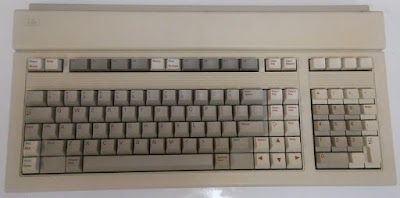
I still recall being weirdly fond and proud of this machine, with its odd not-quite-a-PC keyboard and enormous (for the time) screen. Having come straight from a UNIX-heavy computer science/engineering university course, it was awesome to actually have my own UNIX workstation, and I customised whatever I was able to in terms of window management and the shell startup files to optimise it to my tastes.
It was no SGI Indy but it was mine, it didn't cost me anything, and it allowed me to earn income converting coffee into code. So it was cool.
Sunday, 13 September 2020
Micro-optimisation #9725: Checkout the mainline
Very soon (October 1, 2020) Github will be making main the default branch of all new repositories instead of master. While you make the transition over to the new naming convention, it's handy to have an abstraction over the top for frequently-issued commands. For me, git checkout master is one of my faves, so much so that I've already aliased it to gcm. Which actually makes this easier - main and master start with the same letter...
Now when I issue the gcm command, it'll check if main exists, and if not, try master and remind me that this repo needs to be migrated. Here's the script
~/bin/checkout-main-or-master.sh:
#!/bin/bash

# Try main, else master and warn about outdated branch name

MAIN_BRANCH=`git branch -l | grep main`

if [[ ! -z ${MAIN_BRANCH} ]]; then
  git checkout main
else
  echo "No main branch found, using master... please fix this repo!"
  git checkout master
fi
I run it using this alias:
alias gcm='~/bin/checkout-main-or-master.sh'
So a typical execution looks like this:
mymac:foo john$ gcm
No main branch found, using master... please fix this repo!
Switched to branch 'master'
Your branch is up to date with 'origin/master'.
mymac:foo john$
Monday, 24 August 2020
Micro-optimisation #6587: Git push to Github
I've said it before; sometimes the best automations are the tiny ones that save a few knob-twirls, keystrokes or (as in this case) a drag-copy-paste, each and every day.
It's just a tiny thing, but I like it when a workflow gets streamlined. If you work on a modern Github-hosted codebase with a Pull-Request-based flow, you'll spend more than a few seconds a week looking at this kind of output, which happens the first time you try to git push to a remote that doesn't have your branch:
mymac:foo john$ git push
fatal: The current branch red-text has no upstream branch.
To push the current branch and set the remote as upstream, use

    git push --set-upstream origin red-text

mymac:foo john$ git push --set-upstream origin red-text
Counting objects: 24, done.
Delta compression using up to 8 threads.
Compressing objects: 100% (16/16), done.
Writing objects: 100% (24/24), 2.79 KiB | 953.00 KiB/s, done.
Total 24 (delta 9), reused 0 (delta 0)
remote: Resolving deltas: 100% (9/9), completed with 9 local objects.
remote:
remote: Create a pull request for 'red-text' on GitHub by visiting:
remote:      https://github.com/my-org/foo/pull/new/red-text
remote:
To https://github.com/my-org/foo.git
 * [new branch]        red-text -> red-text
Branch 'red-text' set up to track remote branch 'red-text' from 'origin'.
The desired workflow is clear and simple:
- Push and set the upstream as suggested
- Grab the suggested PR URL
- Use the Mac open command to launch a new browser window for that URL
#!/bin/bash

# Try and push, catch the suggested action if there is one:

SUGG=`git push --porcelain 2>&1 | grep "git push --set-upstream origin"`

if [[ ! -z ${SUGG} ]]; then
  echo "Doing suggested: ${SUGG}"

  URL=`${SUGG} --porcelain 2>&1 | grep remote | grep new | grep -o "https.*"`

  if [[ ! -z ${URL} ]]; then
    echo "Opening URL ${URL}"
    open $URL
  else
    echo "No PR URL found, doing nothing"
  fi
fi
I run it using this alias:
alias gpgh='~/bin/push-to-github.sh'
So a typical execution looks like this:
mymac:foo john$ gpgh
Doing suggested:     git push --set-upstream origin mybranch
Opening URL https://github.com/my-org/someproject/pull/new/mybranch
mymac:foo john$
Friday, 22 November 2019
Micro-optimisations
I finally got around to setting up some aliases for git commands that I issue many, many times a day. Can't believe it's taken me this long to do it. I've also placed them in a file in my Dropbox so I'll always be able to add them to any machine I work on regularly.
alias gs="git status"
alias gcm="git checkout master"
alias gp="git pull"
alias gd="git diff"
alias gcam="git commit -am"
Although I have a few other oft-used and favourite git commands, namely:
- git push - to push code to the server
- git merge master - to merge the code from master with code on this branch
- git checkout - - to switch to the previously-used branch (analogous to cd -)
This actually harks back to my first ever job as a professional engineer; we were using the mighty and fearsome ClearCase version control system, and I was tempted to shortcut some of the arcane commands required, but my manager (very wisely) cautioned similarly against aliasing away complexity. Don't underestimate the power of repetition for both muscle- and conventional memory!
Sunday, 8 September 2019
I like to watch
Remember how computers were supposed to do the work, so people had time to think?
Do you ever catch yourself operating in a tight loop, something like:
  10 Edit file
  20 Invoke [some process] on file
  30 Read output of [some process]
  40 GOTO 10
Feels a bit mechanical, no? Annoying having to switch from the text editor to your terminal window, yes?
Let's break down what's actually happening in your meatspace loop*:
  10 Edit file in text editor
  15 Save file (e.g. Ctrl-S)
  17 Change active window to Terminal (e.g. Cmd/Alt+Tab)
  20 Press [up-arrow] once to recall the last command
  22 Visually confirm it's the expected command
  25 Hit [Enter] to execute the command
  30 Wait for the command to complete
  35 Interpret the output of the command
  40 Cmd/Alt+Tab back to the editor
  45 GOTO 10
That's even more blatant! Most of the work is telling the computer what to do next, even though it's exactly the same as the last iteration.
(*) Props to anyone recognising the BASIC line-numbering reference 😂
Wouldn't something like this be better?
  10 Edit file in text editor
  15 Save file (e.g. Ctrl-S)
  20 Swivel eyeballs to terminal window
  30 Wait for the command to complete
  35 Interpret the output of the command
  40 Swivel eyeballs back to editor
  45 GOTO 10
It can be better
If you've got npm on your system somewhere it's as simple as:
$ npm install -g watchand arranging your UI windows suitably. Having multiple monitors is awesome for this. Now by invoking:
$ watch '[processing command with arguments]' dir1 dir2 ... dirNyou have the machine on your side. As soon as you save any file in dir1, dir2 etc, the command will be run for you. Here are some examples:
Validate a CircleCI build configuration
You're editing the circleci/config.yml of a CircleCI continuously-integrated project. These YAML files are notoriously tricky to get right (whitespace matters...🙄) - so you can get the circleci command-line tool to check your work each time you save the file:$ brew install circleci $ watch 'circleci config validate' .circleci
Validate a Terraform configuration
You're working on a Terraform infrastructure-as-code configuration. These .TF files can have complex interrelationships - so you can get the terraform command-line tool to check your work each time you save the file:$ brew install terraform $ watch 'terraform validate' .
Auto-word-count an entire directory of files
You're working on a collection of files that will eventually be collated together into a single document. There's a word-limit applicable to this end result. How about running wc to give you a word-count whenever you save any file in the working directory?:$ watch 'wc -w *.txt' .
Power tip
Sometimes, the command in your watch expression is so quick (and/or its output so terse), you can't tell whether you're seeing the most-recent output. One way of solving this is to prefix the time-of-day to the output - a quick swivel of the eyeballs to the system clock will confirm which execution you're looking at:
  $ watch 'echo `date '+%X'` `terraform validate`' .
  > Watching .
  13:31:59 Success! The configuration is valid.
  13:32:23 Success! The configuration is valid.
  13:34:41 Success! The configuration is valid.